# Apple Pay
Allow customers to securely make payments using Apple Pay on their iPhone, iPad, or Apple Watch.
Refer to Apple’s [compatibility documentation](https://support.apple.com/en-us/HT208531) to learn which devices support Apple Pay.
Apple Pay is compatible with most Stripe products and features. Stripe users can accept [Apple Pay](https://stripe.com/apple-pay) in iOS applications in iOS 9 and above, and on the web in Safari starting with iOS 10 or macOS Sierra. There are no additional fees to process Apple Pay payments, and [pricing](https://stripe.com/pricing/local-payment-methods#apple-pay) is the same as for other card transactions.
Apple Pay is available to cardholders at participating banks in supported countries. For more information, refer to Apple’s [participating banks](https://support.apple.com/en-us/ht204916) documentation.
#### Payment method properties
- **Customer locations**
Worldwide except India
- **Presentment currency**
See [supported presentment currencies](https://docs.stripe.com/currencies.md#presentment-currencies)
- **Payment confirmation**
Customer-initiated
- **Payment method family**
Wallet
- **Recurring payments**
[Yes](https://docs.stripe.com/apple-pay.md#recurring-payments)
- **Payout timing**
Standard payout timing applies
- **Connect support**
Yes
- **Dispute support**
[Yes](https://docs.stripe.com/apple-pay/disputes-refunds.md#disputed-payments)
- **Manual capture support**
Yes
- **Refunds / Partial refunds**
[Yes / Yes](https://docs.stripe.com/apple-pay/disputes-refunds.md#refunds)
#### Business locations
Stripe accounts worldwide except India can accept Apple Pay payments with local currency settlement.
#### Product support
- Connect
- Checkout1
- Payment Links
- Elements
- Subscriptions
- Invoicing
1When Checkout’s [ui_mode](https://docs.stripe.com/api/checkout/sessions/create.md#create_checkout_session-ui_mode) is `embedded`, it only supports version 17 or later of Safari and iOS.
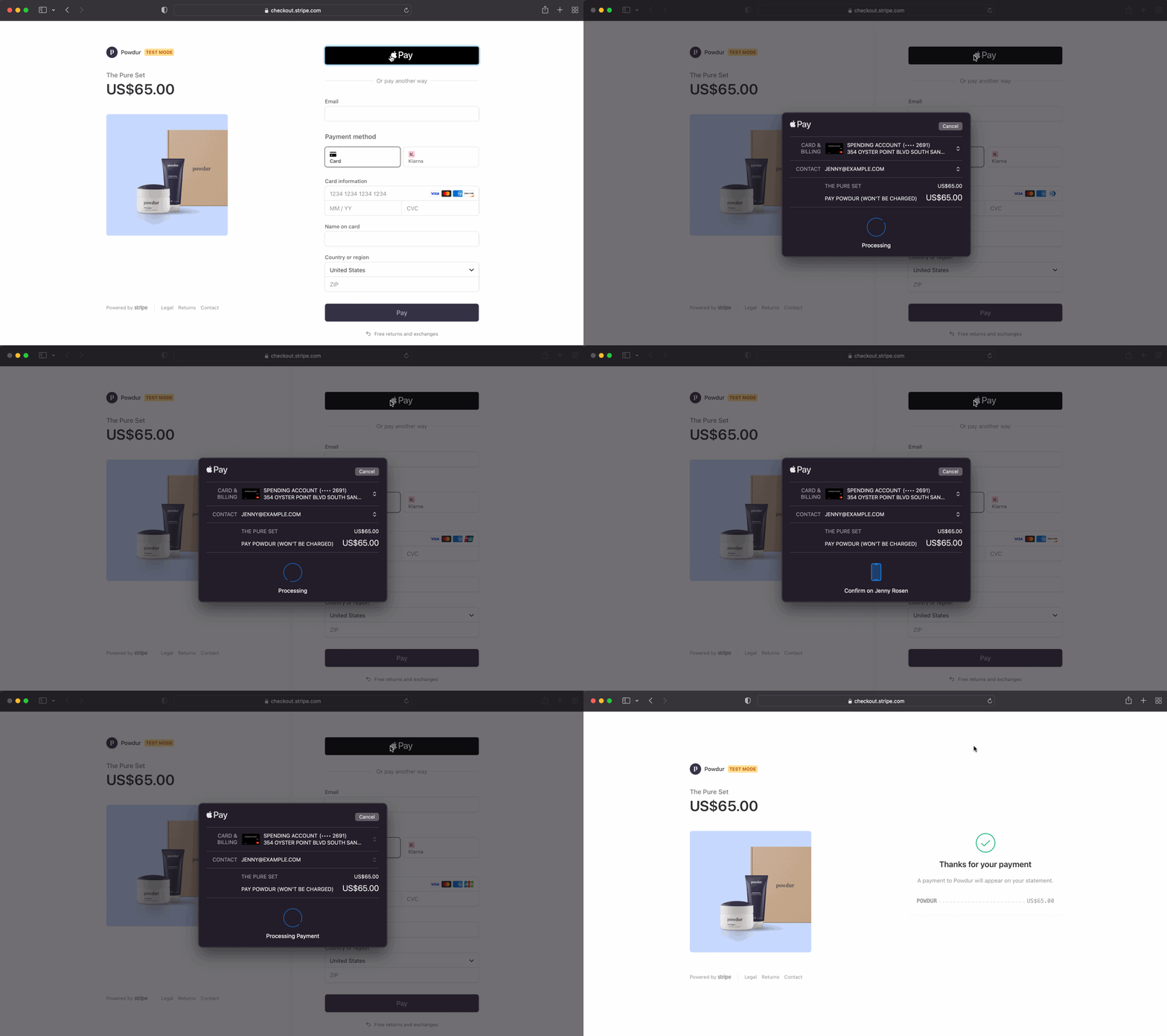
## Payment flow
Below is a demonstration of the Apple Pay payment flow from your checkout page:
## In-app purchase eligibility for Apple Pay
This guide explains how to configure your app to accept Apple Pay directly for physical goods, services, and other eligible items. Stripe processes these payments, and you pay only Stripe’s [processing fees](https://stripe.com/pricing).
For digital products, content, and subscriptions sold in the United States or European Economic Area (EEA), your app can accept Apple Pay by redirecting to an external payment page. You can use the following payment UIs:
- [Stripe Checkout](https://docs.stripe.com/mobile/digital-goods/checkout.md)
- [Web Elements](https://docs.stripe.com/mobile/digital-goods/custom-checkout.md)
- [Payment Links](https://docs.stripe.com/mobile/digital-goods/payment-links.md) (best for limited numbers of products and prices)
In other regions, your app can’t accept Apple Pay for digital products, content, or subscriptions.
## Accept Apple Pay
Stripe offers a variety of methods to add Apple Pay as a payment method. For integration details, select the method you prefer:
# Native iOS
> This is a Native iOS for when platform is ios. View the full page at https://docs.stripe.com/apple-pay?platform=ios.
> If you’re using Stripe’s [prebuilt UI](https://docs.stripe.com/payments/mobile.md), follow the steps in [this guide](https://docs.stripe.com/payments/mobile/accept-payment.md?platform=ios&type=payment#apple-pay) instead.
With the [Stripe iOS SDK](https://github.com/stripe/stripe-ios), you can accept both Apple Pay and traditional credit card payments. Before starting, you need to be enrolled in the [Apple Developer Program](https://developer.apple.com/programs/). Next, follow these steps:
1. [Set up Stripe](https://docs.stripe.com/apple-pay.md#setup)
1. [Register for an Apple Merchant ID](https://docs.stripe.com/apple-pay.md#merchantid)
1. [Create a new Apple Pay certificate](https://docs.stripe.com/apple-pay.md#csr)
1. [Integrate with Xcode](https://docs.stripe.com/apple-pay.md#xcode-pay)
1. [Check if Apple Pay is supported](https://docs.stripe.com/apple-pay.md#check-if-apple-pay-supported)
1. [Create the payment request](https://docs.stripe.com/apple-pay.md#create-payment-request)
1. [Present the payment sheet](https://docs.stripe.com/apple-pay.md#present-payment-sheet)
1. [Submit the payment to Stripe](https://docs.stripe.com/apple-pay.md#handle-payment)
## Set up Stripe [Server-side] [Client-side]
First, you need a Stripe account. [Register now](https://dashboard.stripe.com/register).
### Server-side
This integration requires endpoints on your server that talk to the Stripe API. Use the official libraries for access to the Stripe API from your server:
#### Ruby
```bash
# Available as a gem
sudo gem install stripe
```
```ruby
# If you use bundler, you can add this line to your Gemfile
gem 'stripe'
```
#### Python
```bash
# Install through pip
pip3 install --upgrade stripe
```
```bash
# Or find the Stripe package on http://pypi.python.org/pypi/stripe/
```
```python
# Find the version you want to pin:
# https://github.com/stripe/stripe-python/blob/master/CHANGELOG.md
# Specify that version in your requirements.txt file
stripe>=5.0.0
```
#### PHP
```bash
# Install the PHP library with Composer
composer require stripe/stripe-php
```
```bash
# Or download the source directly: https://github.com/stripe/stripe-php/releases
```
#### Java
```java
/*
For Gradle, add the following dependency to your build.gradle and replace with
the version number you want to use from:
- https://mvnrepository.com/artifact/com.stripe/stripe-java or
- https://github.com/stripe/stripe-java/releases/latest
*/
implementation "com.stripe:stripe-java:30.0.0"
```
```xml
com.stripe
stripe-java
30.0.0
```
```bash
# For other environments, manually install the following JARs:
# - The Stripe JAR from https://github.com/stripe/stripe-java/releases/latest
# - Google Gson from https://github.com/google/gson
```
#### Node.js
```bash
# Install with npm
npm install stripe --save
```
#### Go
```bash
# Make sure your project is using Go Modules
go mod init
# Install stripe-go
go get -u github.com/stripe/stripe-go/v83
```
```go
// Then import the package
import (
"github.com/stripe/stripe-go/v83"
)
```
#### .NET
```bash
# Install with dotnet
dotnet add package Stripe.net
dotnet restore
```
```bash
# Or install with NuGet
Install-Package Stripe.net
```
### Client-side
The [Stripe iOS SDK](https://github.com/stripe/stripe-ios) is open source, [fully documented](https://stripe.dev/stripe-ios/index.html), and compatible with apps supporting iOS 13 or above.
#### Swift Package Manager
To install the SDK, follow these steps:
1. In Xcode, select **File** > **Add Package Dependencies…** and enter `https://github.com/stripe/stripe-ios-spm` as the repository URL.
1. Select the latest version number from our [releases page](https://github.com/stripe/stripe-ios/releases).
1. Add the **StripeApplePay** product to the [target of your app](https://developer.apple.com/documentation/swift_packages/adding_package_dependencies_to_your_app).
#### CocoaPods
1. If you haven’t already, install the latest version of [CocoaPods](https://guides.cocoapods.org/using/getting-started.html).
1. If you don’t have an existing [Podfile](https://guides.cocoapods.org/syntax/podfile.html), run the following command to create one:
```bash
pod init
```
1. Add this line to your `Podfile`:
```podfile
pod 'StripeApplePay'
```
1. Run the following command:
```bash
pod install
```
1. Don’t forget to use the `.xcworkspace` file to open your project in Xcode, instead of the `.xcodeproj` file, from here on out.
1. In the future, to update to the latest version of the SDK, run:
```bash
pod update StripeApplePay
```
#### Carthage
1. If you haven’t already, install the latest version of [Carthage](https://github.com/Carthage/Carthage#installing-carthage).
1. Add this line to your `Cartfile`:
```cartfile
github "stripe/stripe-ios"
```
1. Follow the [Carthage installation instructions](https://github.com/Carthage/Carthage#if-youre-building-for-ios-tvos-or-watchos). Make sure to embed all of the required frameworks listed [here](https://github.com/stripe/stripe-ios/tree/master/StripeApplePay/README.md#manual-linking).
1. In the future, to update to the latest version of the SDK, run the following command:
```bash
carthage update stripe-ios --platform ios
```
#### Manual Framework
1. Head to our [GitHub releases page](https://github.com/stripe/stripe-ios/releases/latest) and download and unzip **Stripe.xcframework.zip**.
1. Drag **StripeApplePay.xcframework** to the **Embedded Binaries** section of the **General** settings in your Xcode project. Make sure to select **Copy items if needed**.
1. Repeat step 2 for all required frameworks listed [here](https://github.com/stripe/stripe-ios/tree/master/StripeApplePay/README.md#manual-linking).
1. In the future, to update to the latest version of our SDK, repeat steps 1–3.
> For details on the latest SDK release and past versions, see the [Releases](https://github.com/stripe/stripe-ios/releases) page on GitHub. To receive notifications when a new release is published, [watch releases](https://help.github.com/en/articles/watching-and-unwatching-releases-for-a-repository#watching-releases-for-a-repository) for the repository.
Configure the SDK with your Stripe [publishable key](https://dashboard.stripe.com/test/apikeys) on app start. This enables your app to make requests to the Stripe API.
#### Swift
```swift
import UIKitimportStripeApplePay
@main
class AppDelegate: UIResponder, UIApplicationDelegate {
func application(_ application: UIApplication, didFinishLaunchingWithOptions launchOptions: [UIApplication.LaunchOptionsKey: Any]?) -> Bool {StripeAPI.defaultPublishableKey = "<>"
// do any other necessary launch configuration
return true
}
}
```
#### Objective-C
```objc
#import "AppDelegate.h"@import StripeCore;
@implementation AppDelegate
- (BOOL)application:(UIApplication *)application didFinishLaunchingWithOptions:(NSDictionary *)launchOptions {[StripeAPI setDefaultPublishableKey:@"<>"];
// do any other necessary launch configuration
return YES;
}
@end
```
> Use your [test keys](https://docs.stripe.com/keys.md#obtain-api-keys) while you test and develop, and your [live mode](https://docs.stripe.com/keys.md#test-live-modes) keys when you publish your app.
## Register for an Apple Merchant ID
Obtain an Apple Merchant ID by [registering for a new identifier](https://developer.apple.com/account/resources/identifiers/add/merchant) on the Apple Developer website.
Fill out the form with a description and identifier. Your description is for your own records and you can modify it in the future. Stripe recommends using the name of your app as the identifier (for example, `merchant.com.{{YOUR_APP_NAME}}`).
## Create a new Apple Pay certificate
Create a certificate for your app to encrypt payment data.
Go to the [iOS Certificate Settings](https://dashboard.stripe.com/settings/ios_certificates) in the Dashboard, click **Add new application**, and follow the guide.
Download a Certificate Signing Request (CSR) file to get a secure certificate from Apple that allows you to use Apple Pay.
One CSR file must be used to issue exactly one certificate. If you switch your Apple Merchant ID, you must go to the [iOS Certificate Settings](https://dashboard.stripe.com/settings/ios_certificates) in the Dashboard to obtain a new CSR and certificate.
## Integrate with Xcode
Add the Apple Pay capability to your app. In Xcode, open your project settings, click the **Signing & Capabilities** tab, and add the **Apple Pay** capability. You might be prompted to log in to your developer account at this point. Select the merchant ID you created earlier, and your app is ready to accept Apple Pay.
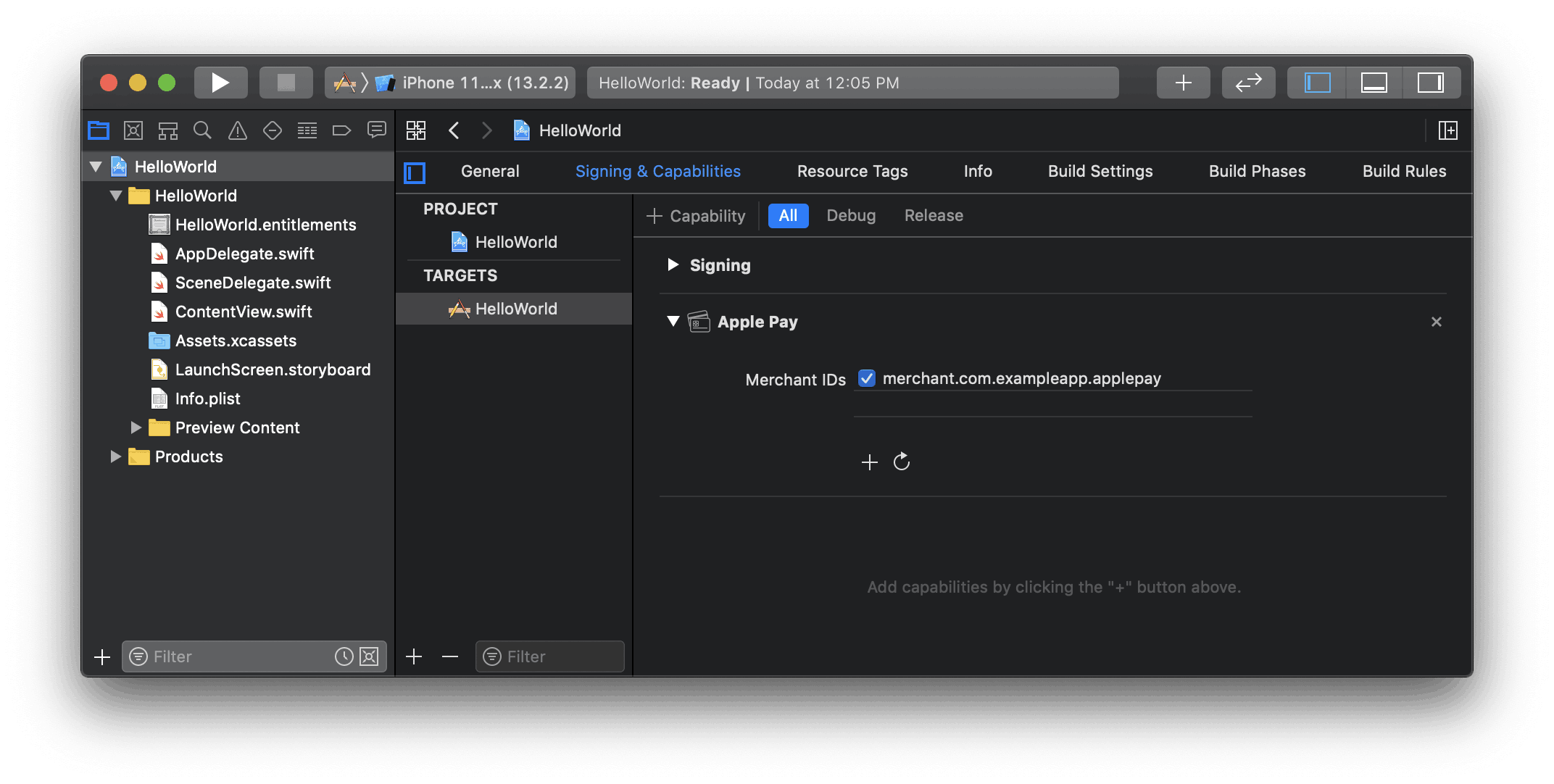
Enable the Apple Pay capability in Xcode
## Check if Apple Pay is supported
Before displaying Apple Pay as a payment option in your app, determine if the user’s device supports Apple Pay and that they have a card added to their wallet:
#### Swift
```swift
import StripeApplePay
import PassKit
class CheckoutViewController: UIViewController, ApplePayContextDelegate {
let applePayButton: PKPaymentButton = PKPaymentButton(paymentButtonType: .plain, paymentButtonStyle: .black)
override func viewDidLoad() {
super.viewDidLoad()
// Only offer Apple Pay if the customer can pay with it
applePayButton.isHidden = !StripeAPI.deviceSupportsApplePay()
applePayButton.addTarget(self, action: #selector(handleApplePayButtonTapped), for: .touchUpInside)
}
// ...continued in next step
}
```
#### Objective C
```objc
@import Stripe;
@import StripeCore;
@import StripeApplePay;
#import
@interface CheckoutViewController ()
@property (nonatomic) PKPaymentButton *applePayButton;
@end
@implementation CheckoutViewController
- (void)viewDidLoad {
[super viewDidLoad];
// Only offer Apple Pay if the customer can pay with it
self.applePayButton.hidden = ![StripeAPI deviceSupportsApplePay];
[self.applePayButton addTarget:self action:@selector(handleApplePayButtonTapped) forControlEvents:UIControlEventTouchUpInside];
}
```
## Create the payment request
When the user taps the **Apple Pay** button, call [StripeAPI paymentRequestWithMerchantIdentifier:country:currency:](https://stripe.dev/stripe-ios/stripe-payments/Classes/StripeAPI.html#/c:@M@StripeCore@objc\(cs\)StripeAPI\(cm\)paymentRequestWithMerchantIdentifier:country:currency:) to create a [PKPaymentRequest](https://developer.apple.com/documentation/passkit/pkpaymentrequest).
Then, configure the `PKPaymentRequest` to display your business name and the total. You can also collect information like billing details or shipping information.
See [Apple’s documentation](https://developer.apple.com/design/human-interface-guidelines/apple-pay/overview/checkout-and-payment/#customize-the-payment-sheet) for full guidance on how to customize the payment request.
#### Swift
```swift
func handleApplePayButtonTapped() {
let merchantIdentifier = "merchant.com.your_app_name"
let paymentRequest = StripeAPI.paymentRequest(withMerchantIdentifier: merchantIdentifier, country: "US", currency: "USD")
// Configure the line items on the payment request
paymentRequest.paymentSummaryItems = [
// The final line should represent your company;
// it'll be prepended with the word "Pay" (that is, "Pay iHats, Inc $50")
PKPaymentSummaryItem(label: "iHats, Inc", amount: 50.00),
]
// ...continued in next step
}
```
#### Objective C
```objc
- (void)handleApplePayButtonTapped {
NSString *merchantIdentifier = @"com.merchant.your_application";
PKPaymentRequest *paymentRequest = [StripeAPI paymentRequestWithMerchantIdentifier:merchantIdentifier country:@"US" currency:@"USD"];
paymentRequest.paymentSummaryItems = @[
// The final line should represent your company;
// it'll be prepended with the word "Pay" (that is, "Pay iHats, Inc $50")
[PKPaymentSummaryItem summaryItemWithLabel:@"iHats, Inc" amount:[NSDecimalNumber decimalNumberWithString:@"50.00"]],
];
// ...continued in next step
}
```
## Present the payment sheet
Create an [STPApplePayContext](https://stripe.dev/stripe-ios/stripe-applepay/Classes/STPApplePayContext.html) instance with the `PKPaymentRequest` and use it to present the Apple Pay sheet:
#### Swift
```swift
func handleApplePayButtonTapped() {
// ...continued from previous step
// Initialize an STPApplePayContext instance
if let applePayContext = STPApplePayContext(paymentRequest: paymentRequest, delegate: self) {
// Present Apple Pay payment sheet
applePayContext.presentApplePay(on: self)
} else {
// There is a problem with your Apple Pay configuration
}
}
```
#### Objective C
```objc
- (void)handleApplePayButtonTapped {
// ...continued from previous step
// Initialize an STPApplePayContext instance
STPApplePayContext *applePayContext = [[STPApplePayContext alloc] initWithPaymentRequest:paymentRequest delegate:self];
if (applePayContext) {
// Present Apple Pay payment sheet
[applePayContext presentApplePayOnViewController:self completion:nil];
} else {
// There is a problem with your Apple Pay configuration
}
}
```
Apple requires that user gestures trigger the Apple Pay modal (for example, clicking a button or interacting with the form). Make sure your code adheres to the following:
- Invoke the payment sheet directly with a user activation event.
- Add the code for the payment sheet at or near the top of your user gesture event handler, before any asynchronous or long-running code.
- Set a reasonable time limit to call `confirmPayment` after the user gesture.
## Submit the payment to Stripe
### Server-side
Make an endpoint that creates a PaymentIntent with an [amount](https://docs.stripe.com/api/payment_intents/object.md#payment_intent_object-amount) and [currency](https://docs.stripe.com/api/payment_intents/object.md#payment_intent_object-currency). Always decide how much to charge on the server side, a trusted environment, as opposed to the client side. This prevents malicious customers from choosing their own prices.
#### curl
```bash
curl https://api.stripe.com/v1/payment_intents \
-u <>: \
-d "amount"=1099 \
-d "currency"="usd"
```
#### Ruby
```ruby
# Set your secret key. Remember to switch to your live secret key in production.
# See your keys here: https://dashboard.stripe.com/apikeys
Stripe.api_key = '<>'
intent = Stripe::PaymentIntent.create({
amount: 1099,
currency: 'usd',
})
client_secret = intent['client_secret']
# Pass the client secret to the client
```
#### Python
```python
# Set your secret key. Remember to switch to your live secret key in production.
# See your keys here: https://dashboard.stripe.com/apikeys
stripe.api_key = '<>'
intent = stripe.PaymentIntent.create(
amount=1099,
currency='usd',
)
client_secret = intent.client_secret
# Pass the client secret to the client
```
#### PHP
```php
// Set your secret key. Remember to switch to your live secret key in production.
// See your keys here: https://dashboard.stripe.com/apikeys
\Stripe\Stripe::setApiKey('<>');
$intent = \Stripe\PaymentIntent::create([
'amount' => 1099,
'currency' => 'usd',
]);
$client_secret = $intent->client_secret;
// Pass the client secret to the client
```
#### Java
```java
// Set your secret key. Remember to switch to your live secret key in production.
// See your keys here: https://dashboard.stripe.com/apikeys
Stripe.apiKey = "<>";
PaymentIntentCreateParams params =
PaymentIntentCreateParams.builder()
.setAmount(1099L)
.setCurrency("usd")
.build();
PaymentIntent intent = PaymentIntent.create(params);
String clientSecret = intent.getClientSecret();
// Pass the client secret to the client
```
#### Node.js
```javascript
// Set your secret key. Remember to switch to your live secret key in production.
// See your keys here: https://dashboard.stripe.com/apikeys
const stripe = require('stripe')('<>');
const paymentIntent = await stripe.paymentIntents.create({
amount: 1099,
currency: 'usd',
});
const clientSecret = paymentIntent.client_secret
// Pass the client secret to the client
```
#### Go
```go
// Set your secret key. Remember to switch to your live secret key in production.
// See your keys here: https://dashboard.stripe.com/apikeys
stripe.Key = "<>"
params := &stripe.PaymentIntentParams{
Amount: stripe.Int64(1099),
Currency: stripe.String(string(stripe.CurrencyUSD)),
}
pi, _ := paymentintent.New(params)
// Pass the client secret to the client
```
#### .NET
```dotnet
// Set your secret key. Remember to switch to your live secret key in production.
// See your keys here: https://dashboard.stripe.com/apikeys
StripeConfiguration.ApiKey = "<>";
var options = new PaymentIntentCreateOptions
{
Amount = 1099,
Currency = "usd",
};
var service = new PaymentIntentService();
var paymentIntent = service.Create(options);
// Pass the client secret to the client
```
### Client-side
#### Payment Intents API
Implement `applePayContext(_:didCreatePaymentMethod:paymentInformation:)` to return the PaymentIntent client secret retrieved from the endpoint above, or throw an error if the request fails.
After you return the client secret, `STPApplePayContext` completes the payment, dismisses the Apple Pay sheet, and calls `applePayContext(_:didCompleteWithStatus:error:)` with the status of the payment. Implement this method to show a receipt to your customer.
#### Swift
```swift
extension CheckoutViewController {
func applePayContext(_ context: STPApplePayContext, didCreatePaymentMethod paymentMethod: StripeAPI.PaymentMethod, paymentInformation: PKPayment) async throws -> String {
let clientSecret = try await ... // Retrieve the PaymentIntent client secret from your backend (see Server-side step above)
// Return the client secret or throw an error
return clientSecret
}
func applePayContext(_ context: STPApplePayContext, didCompleteWith status: STPApplePayContext.PaymentStatus, error: Error?) {
switch status {
case .success:
// Payment succeeded, show a receipt view
break
case .error:
// Payment failed, show the error
break
case .userCancellation:
// User canceled the payment
break
@unknown default:
fatalError()
}
}
}
```
#### Objective C
```objc
#pragma mark - STPApplePayContextDelegate
- (void)applePayContext:(STPApplePayContext *)context didCreatePaymentMethod:(STPPaymentMethod *)paymentMethod paymentInformation:(PKPayment *)paymentInformation completion:(STPIntentClientSecretCompletionBlock)completion {
NSString *clientSecret = ... // Call your backend to create a PaymentIntent (see Server-side step above) and get its client secret
// Call the completion block with the client secret or an error
completion(clientSecret, error);
}
- (void)applePayContext:(STPApplePayContext *)context didCompleteWithStatus:(STPPaymentStatus)status error:(NSError *)error {
switch (status) {
case STPPaymentStatusSuccess:
// Payment succeeded, show a receipt view
break;
case STPPaymentStatusError:
// Payment failed, show the error
break;
case STPPaymentStatusUserCancellation:
// User canceled the payment
break;
}
}
```
Finally, [handle post-payment events](https://docs.stripe.com/payments/accept-a-payment.md?platform=ios&mobile-ui=payment-element#ios-post-payment) to do things like sending an order confirmation email to your customer, logging the sale in a database, or starting a shipping workflow.
#### Payment Intents API (Server-side confirmation)
Implement `applePayContext(_:didCreatePaymentMethod:paymentInformation:)` to send `paymentMethod.id` to your server and create and confirm the PaymentIntent. Return the PaymentIntent client secret returned from your server, or throw an error if the request fails.
After you return the client secret, `STPApplePayContext` completes the payment, dismisses the Apple Pay sheet, and calls `applePayContext(_:didCompleteWithStatus:error:)` with the status of the payment. Implement this method to show a receipt to your customer.
#### Swift
```swift
extension CheckoutViewController {
func applePayContext(_ context: STPApplePayContext, didCreatePaymentMethod paymentMethod: StripeAPI.PaymentMethod, paymentInformation: PKPayment) async throws -> String {
let clientSecret = try await ... // Call your backend to create and confirm a PaymentIntent and get its client secret
// Return the client secret or throw an error
return clientSecret
}
func applePayContext(_ context: STPApplePayContext, didCompleteWith status: STPApplePayContext.PaymentStatus, error: Error?) {
switch status {
case .success:
// Payment succeeded, show a receipt view
break
case .error:
// Payment failed, show the error
break
case .userCancellation:
// User canceled the payment
break
@unknown default:
fatalError()
}
}
}
```
#### Objective C
```objc
#pragma mark - STPApplePayContextDelegate
- (void)applePayContext:(STPApplePayContext *)context didCreatePaymentMethod:(STPPaymentMethod *)paymentMethod paymentInformation:(PKPayment *)paymentInformation completion:(STPIntentClientSecretCompletionBlock)completion {
NSString *clientSecret = ... // Call your backend to create and confirm a PaymentIntent and get its client secret
// Call the completion block with the client secret or an error
completion(clientSecret, error);
}
- (void)applePayContext:(STPApplePayContext *)context didCompleteWithStatus:(STPPaymentStatus)status error:(NSError *)error {
switch (status) {
case STPPaymentStatusSuccess:
// Payment succeeded, show a receipt view
break;
case STPPaymentStatusError:
// Payment failed, show the error
break;
case STPPaymentStatusUserCancellation:
// User canceled the payment
break;
}
}
```
### Troubleshooting
If you’re seeing errors from the Stripe API when attempting to create tokens, you most likely have a problem with your Apple Pay Certificate. You’ll need to generate a new certificate and upload it to Stripe, as described on this page. Make sure you use a CSR obtained from your Dashboard and not one you generated yourself. Xcode often incorrectly caches old certificates, so in addition to generating a new certificate, Stripe recommends creating a new Apple Merchant ID as well.
If you receive the error:
> You haven’t added your Apple merchant account to Stripe
it’s likely your app is sending data encrypted with a previous (non-Stripe) CSR/Certificate. Make sure any certificates generated by non-Stripe CSRs are revoked under your Apple Merchant ID. If this doesn’t resolve the issue, delete the merchant ID in your Apple account and re-create it. Then, create a new certificate based on the same (Stripe-provided) CSR that was previously used. You don’t need to upload this new certificate to Stripe. When finished, toggle the Apple Pay Credentials off and on in your app to ensure they refresh properly.
## App Clips
The `StripeApplePay` module is a lightweight Stripe SDK optimized for use in an [App Clip](https://developer.apple.com/app-clips/). Follow [the above steps](https://docs.stripe.com/apple-pay.md?platform=ios#accept) to add the `StripeApplePay` module to your App Clip’s target.
> The `StripeApplePay` module is only supported in Swift. Objective-C users must import `STPApplePayContext` from the `Stripe` module.
### Migrating from STPApplePayContext
If you’re an existing user of `STPApplePayContext` and wish to switch to the lightweight Apple Pay SDK, follow these steps:
1. In your App Clip target’s dependencies, replace the `Stripe` module with the `StripeApplePay` module.
1. In your code, replace `import Stripe` with `import StripeApplePay`.
1. Replace your usage of `STPApplePayContextDelegate` with the new `ApplePayContextDelegate` protocol.
1. Change your implementation of `applePayContext(_:didCreatePaymentMethod:)` to accept a `StripeAPI.PaymentMethod`.
1. Change your implementation of `applePayContext(_:didCompleteWith:error:)` to accept an `STPApplePayContext.PaymentStatus`.
### Before
```swift
func applePayContext(_ context: STPApplePayContext,
paymentInformation: PKPayment,
// ...
}
func applePayContext(_ context: STPApplePayContext,
error: Error?) {
// ...
}
}
```
### After
```swift
import StripeApplePay
class CheckoutViewController: UIViewController, ApplePayContextDelegate {
func applePayContext(_ context: STPApplePayContext,didCreatePaymentMethod paymentMethod: StripeAPI.PaymentMethod,
paymentInformation: PKPayment
// ...} async throws -> String {
func applePayContext(_ context: STPApplePayContext,didCompleteWith status: STPApplePayContext.PaymentStatus,
error: Error?) {
// ...
}
}
```
## Recurring payments
In iOS 16 or later, you can adopt [merchant tokens](https://developer.apple.com/apple-pay/merchant-tokens/) by setting the `recurringPaymentRequest` or `automaticReloadPaymentRequest` properties on `PKPaymentRequest`.
Recurring payments can use saved payment methods for [off-session transactions](https://docs.stripe.com/apple-pay/apple-pay-recurring.md#set-up-off-session-payments) only.
#### Swift
```swift
extension CheckoutViewController {
func handleApplePayButtonTapped() {
let request = StripeAPI.paymentRequest(withMerchantIdentifier: merchantIdentifier, country: "US", currency: "USD")
let billing = PKRecurringPaymentSummaryItem(label: "My Subscription", amount: NSDecimalNumber(string: "59.99"))
billing.startDate = Date()
billing.endDate = Date().addingTimeInterval(60 * 60 * 24 * 365)
billing.intervalUnit = .month
request.recurringPaymentRequest = PKRecurringPaymentRequest(paymentDescription: "Recurring",
regularBilling: billing,
managementURL: URL(string: "https://my-backend.example.com/customer-portal")!)
request.recurringPaymentRequest?.billingAgreement = "You'll be billed $59.99 every month for the next 12 months. To cancel at any time, go to Account and click 'Cancel Membership.'"
request.paymentSummaryItems = [billing]
}
}
```
#### Objective C
```objc
- (void)handleApplePayButtonTapped {
PKPaymentRequest *request = [StripeAPI paymentRequestWithMerchantIdentifier:merchantIdentifier country:@"US" currency:@"USD"];
PKRecurringPaymentSummaryItem *billing = [PKRecurringPaymentSummaryItem summaryItemWithLabel:@"My Subscription" amount:[NSDecimalNumber decimalNumberWithString: @"59.99"]];
billing.startDate = [NSDate date];
billing.endDate = [[NSDate date] dateByAddingTimeInterval:60 * 60 * 24 * 365];
billing.intervalUnit = NSCalendarUnitMonth;
request.recurringPaymentRequest = [[PKRecurringPaymentRequest alloc] initWithPaymentDescription: @"Recurring"
regularBilling: billing
managementURL: [NSURL URLWithString:@"https://my-backend.example.com/customer-portal"]];
request.recurringPaymentRequest.billingAgreement = @"You'll be billed $59.99 every month for the next 12 months. To cancel at any time, go to Account and click 'Cancel Membership.'";
request.paymentSummaryItems = @[billing];
}
```
To learn more about how to use recurring payments with Apple Pay, see [Apple’s PassKit documentation](https://developer.apple.com/documentation/passkit/pkpaymentrequest).
## Order tracking
To adopt [order tracking](https://developer.apple.com/design/human-interface-guidelines/technologies/wallet/designing-order-tracking) in iOS 16 or later, implement the [applePayContext(context:willCompleteWithResult:handler:)](https://github.com/stripe/stripe-ios/blob/22.8.0/StripeApplePay/StripeApplePay/Source/ApplePayContext/STPApplePayContext.swift#L38) function in your `ApplePayContextDelegate`. Stripe calls your implementation after the payment is complete, but before iOS dismisses the Apple Pay sheet.
In your implementation:
1. Fetch the order details from your server for the completed order.
1. Add these details to the provided [PKPaymentAuthorizationResult](https://developer.apple.com/documentation/passkit/pkpaymentauthorizationresult).
1. Call the provided completion handler on the main queue.
To learn more about order tracking, see [Apple’s Wallet Orders documentation](https://developer.apple.com/documentation/walletorders).
#### Swift
```swift
extension CheckoutViewController {
func applePayContext(_ context: STPApplePayContext, willCompleteWithResult authorizationResult: PKPaymentAuthorizationResult) async -> PKPaymentAuthorizationResult {
// Fetch the order details from your service
do {
let myOrderDetails = try await MyAPIClient.shared.fetchOrderDetails(orderID: myOrderID)
authorizationResult.orderDetails = PKPaymentOrderDetails(
orderTypeIdentifier: myOrderDetails.orderTypeIdentifier, // "com.myapp.order"
orderIdentifier: myOrderDetails.orderIdentifier, // "ABC123-AAAA-1111"
webServiceURL: myOrderDetails.webServiceURL, // "https://my-backend.example.com/apple-order-tracking-backend"
authenticationToken: myOrderDetails.authenticationToken) // "abc123"
)
// Return your modified PKPaymentAuthorizationResult
return authorizationResult
} catch {
return PKPaymentAuthorizationResult(status: .failure, errors: [error])
}
}
}
```
#### Objective C
```objc
#pragma mark - STPApplePayContextDelegate
- (void)applePayContext:(STPApplePayContext *)context willCompleteWithResult:(PKPaymentAuthorizationResult *)authorizationResult handler:(void (^)(PKPaymentAuthorizationResult * _Nonnull))handler {
// Fetch the order details from your service
[[MyAPIClient sharedClient] createPaymentIntentWithCompletion:^(MyAPIOrderDetails *myOrderDetails) {
authorizationResult.orderDetails = [[PKPaymentOrderDetails alloc]
initWithOrderTypeIdentifier: myOrderDetails.orderTypeIdentifier // "com.myapp.order"
orderIdentifier: myOrderDetails.orderIdentifier // "ABC123-AAAA-1111"
webServiceURL: myOrderDetails.webServiceURL, // "https://my-backend.example.com/apple-order-tracking-backend"
authenticationToken: myOrderDetails.authenticationToken]; // "abc123"
// Call the handler block on the main queue with your modified PKPaymentAuthorizationResult
handler(authorizationResult);
}];
}
```
# React Native iOS
> This is a React Native iOS for when platform is react-native. View the full page at https://docs.stripe.com/apple-pay?platform=react-native.
You can use the Stripe [React Native SDK](https://github.com/stripe/stripe-react-native), to accept both Apple Pay and traditional credit card payments. Before starting, you need to enroll in the [Apple Developer Program](https://developer.apple.com/programs/) and [set up Stripe on your server and in your app](https://docs.stripe.com/payments/accept-a-payment.md?platform=react-native&mobile-ui=payment-element#react-native-setup). Next, follow these steps:
1. [Register for an Apple Merchant ID](https://docs.stripe.com/apple-pay.md#merchantid)
1. [Create a new Apple Pay certificate](https://docs.stripe.com/apple-pay.md#csr)
1. [Integrate with Xcode](https://docs.stripe.com/apple-pay.md#xcode-pay)
1. [Set your Apple Merchant ID in StripeProvider](https://docs.stripe.com/apple-pay.md#set-merchantid)
1. [Check if Apple Pay is supported](https://docs.stripe.com/apple-pay.md#check-if-apple-pay-supported)
1. [Present the payment sheet](https://docs.stripe.com/apple-pay.md#present-payment-sheet)
1. [Submit the payment to Stripe](https://docs.stripe.com/apple-pay.md#handle-payment)
> If you use React Native and Expo, Expo Go doesn’t support Apple Pay. To use Apple Pay with Expo, you must create a [development build](https://docs.expo.dev/get-started/set-up-your-environment/?mode=development-build&platform=ios). If you already have an Expo Go project, you can [migrate it to a development build](https://docs.expo.dev/develop/development-builds/expo-go-to-dev-build/).
## Register for an Apple Merchant ID
Obtain an Apple Merchant ID by [registering for a new identifier](https://developer.apple.com/account/resources/identifiers/add/merchant) on the Apple Developer website.
Fill out the form with a description and identifier. Your description is for your own records and you can modify it in the future. Stripe recommends using the name of your app as the identifier (for example, `merchant.com.{{YOUR_APP_NAME}}`).
## Create a new Apple Pay certificate
Create a certificate for your app to encrypt payment data.
Go to the [iOS Certificate Settings](https://dashboard.stripe.com/settings/ios_certificates) in the Dashboard, click **Add new application**, and follow the guide.
Download a Certificate Signing Request (CSR) file to get a secure certificate from Apple that allows you to use Apple Pay.
One CSR file must be used to issue exactly one certificate. If you switch your Apple Merchant ID, you must go to the [iOS Certificate Settings](https://dashboard.stripe.com/settings/ios_certificates) in the Dashboard to obtain a new CSR and certificate.
## Integrate with Xcode
Add the Apple Pay capability to your app. In Xcode, open your project settings, click the **Signing & Capabilities** tab, and add the **Apple Pay** capability. You might be prompted to log in to your developer account at this point. Select the merchant ID you created earlier, and your app is ready to accept Apple Pay.

Enable the Apple Pay capability in Xcode
## Set your Apple Merchant ID in StripeProvider
In the `StripeProvider` component, specify the Apple Merchant ID that you successfully registered for:
```jsx
import { StripeProvider } from '@stripe/stripe-react-native';
function App() {
return (
// Your app code here
);
}
```
## Check if Apple Pay is supported
Before displaying Apple Pay as a payment option in your app, determine if the user’s device supports Apple Pay and that they have a card added to their wallet:
```jsx
import { PlatformPayButton, isPlatformPaySupported } from '@stripe/stripe-react-native';
function PaymentScreen() {
const [isApplePaySupported, setIsApplePaySupported] = useState(false);
useEffect(() => {
(async function () {
setIsApplePaySupported(await isPlatformPaySupported());
})();
}, [isPlatformPaySupported]);
// ...
const pay = async () => {
// ...
};
// ...
return (
{isApplePaySupported && (
)}
);
}
```
## Create the Payment Intent
### Server-side
Make an endpoint that creates a PaymentIntent with an [amount](https://docs.stripe.com/api/payment_intents/object.md#payment_intent_object-amount) and [currency](https://docs.stripe.com/api/payment_intents/object.md#payment_intent_object-currency). Always decide how much to charge on the server side, a trusted environment, as opposed to the client side. This prevents malicious customers from choosing their own prices.
#### curl
```bash
curl https://api.stripe.com/v1/payment_intents \
-u <>: \
-d "amount"=1099 \
-d "currency"="usd"
```
#### Ruby
```ruby
# Set your secret key. Remember to switch to your live secret key in production.
# See your keys here: https://dashboard.stripe.com/apikeys
Stripe.api_key = '<>'
intent = Stripe::PaymentIntent.create({
amount: 1099,
currency: 'usd',
})
client_secret = intent['client_secret']
# Pass the client secret to the client
```
#### Python
```python
# Set your secret key. Remember to switch to your live secret key in production.
# See your keys here: https://dashboard.stripe.com/apikeys
stripe.api_key = '<>'
intent = stripe.PaymentIntent.create(
amount=1099,
currency='usd',
)
client_secret = intent.client_secret
# Pass the client secret to the client
```
#### PHP
```php
// Set your secret key. Remember to switch to your live secret key in production.
// See your keys here: https://dashboard.stripe.com/apikeys
\Stripe\Stripe::setApiKey('<>');
$intent = \Stripe\PaymentIntent::create([
'amount' => 1099,
'currency' => 'usd',
]);
$client_secret = $intent->client_secret;
// Pass the client secret to the client
```
#### Java
```java
// Set your secret key. Remember to switch to your live secret key in production.
// See your keys here: https://dashboard.stripe.com/apikeys
Stripe.apiKey = "<>";
PaymentIntentCreateParams params =
PaymentIntentCreateParams.builder()
.setAmount(1099L)
.setCurrency("usd")
.build();
PaymentIntent intent = PaymentIntent.create(params);
String clientSecret = intent.getClientSecret();
// Pass the client secret to the client
```
#### Node.js
```javascript
// Set your secret key. Remember to switch to your live secret key in production.
// See your keys here: https://dashboard.stripe.com/apikeys
const stripe = require('stripe')('<>');
const paymentIntent = await stripe.paymentIntents.create({
amount: 1099,
currency: 'usd',
});
const clientSecret = paymentIntent.client_secret
// Pass the client secret to the client
```
#### Go
```go
// Set your secret key. Remember to switch to your live secret key in production.
// See your keys here: https://dashboard.stripe.com/apikeys
stripe.Key = "<>"
params := &stripe.PaymentIntentParams{
Amount: stripe.Int64(1099),
Currency: stripe.String(string(stripe.CurrencyUSD)),
}
pi, _ := paymentintent.New(params)
// Pass the client secret to the client
```
#### .NET
```dotnet
// Set your secret key. Remember to switch to your live secret key in production.
// See your keys here: https://dashboard.stripe.com/apikeys
StripeConfiguration.ApiKey = "<>";
var options = new PaymentIntentCreateOptions
{
Amount = 1099,
Currency = "usd",
};
var service = new PaymentIntentService();
var paymentIntent = service.Create(options);
// Pass the client secret to the client
```
### Client-side
Create a method that requests a PaymentIntent from your server:
```jsx
function PaymentScreen() {
// ...
const fetchPaymentIntentClientSecret = async () => {
const response = await fetch(`${API_URL}/create-payment-intent`, {
method: 'POST',
headers: {
'Content-Type': 'application/json',
},
body: JSON.stringify({
some: 'value',
}),
});
const { clientSecret } = await response.json();
return clientSecret;
};
// ...
}
```
### Troubleshooting
If you’re seeing errors from the Stripe API when attempting to create tokens, you most likely have a problem with your Apple Pay Certificate. You’ll need to generate a new certificate and upload it to Stripe, as described on this page. Make sure you use a CSR obtained from your Dashboard and not one you generated yourself. Xcode often incorrectly caches old certificates, so in addition to generating a new certificate, Stripe recommends creating a new Apple Merchant ID as well.
If you receive the error:
> You haven’t added your Apple merchant account to Stripe
it’s likely your app is sending data encrypted with a previous (non-Stripe) CSR/Certificate. Make sure any certificates generated by non-Stripe CSRs are revoked under your Apple Merchant ID. If this doesn’t resolve the issue, delete the merchant ID in your Apple account and re-create it. Then, create a new certificate based on the same (Stripe-provided) CSR that was previously used. You don’t need to upload this new certificate to Stripe. When finished, toggle the Apple Pay Credentials off and on in your app to ensure they refresh properly.
## Present the payment sheet
In your [`PlatformPayButton`’s](https://stripe.dev/stripe-react-native/api-reference/index.html#PlatformPayButton) `onPress` prop, call `confirmPlatformPayPayment` to open an Apple Pay sheet. To display the customer’s cart items on the payment sheet, pass the items as an argument. The final item must represent your company and the total; it appears in the sheet with the word “Pay” prepended (for example, “Pay iHats, Inc. $50”).
> In your code that handles the customer action, don’t include any complex or asynchronous actions before displaying the payment sheet. If the user action doesn’t directly invoke the payment sheet, Apple Pay returns an error.
```jsx
import { confirmPlatformPayPayment } from '@stripe/stripe-react-native';
function PaymentScreen() {
// ... see above
const pay = async () => {
const clientSecret = await fetchPaymentIntentClientSecret()
const { error, paymentIntent } = await confirmPlatformPayPayment(
clientSecret,
{
applePay: {
cartItems: [
{
label: 'Example item name',
amount: '14.00',
paymentType: PlatformPay.PaymentType.Immediate,
},
{
label: 'Tax',
amount: '1.60',
paymentType: PlatformPay.PaymentType.Immediate,
},
{
label: 'iHats, Inc.',
amount: '15.60',
paymentType: PlatformPay.PaymentType.Immediate,
},
],
merchantCountryCode: 'US',
currencyCode: 'USD',
requiredShippingAddressFields: [
PlatformPay.ContactField.PostalAddress,
],
requiredBillingContactFields: [PlatformPay.ContactField.PhoneNumber],
},
}
);
if (error) {
// handle error
} else {
Alert.alert('Success', 'Check the logs for payment intent details.');
console.log(JSON.stringify(paymentIntent, null, 2));
}
};
// ... see above
}
```
## Optional: Create a Payment Method [Client-side]
If you confirm your payment on your server, you can use Apple Pay to only collect a `PaymentMethod` instead of confirm a payment. To do so, call the `createPlatformPayPaymentMethod` method:
```javascript
import {PlatformPayButton, isPlatformPaySupported, createPlatformPayPaymentMethod} from '@stripe/stripe-react-native';
function PaymentScreen() {
const [isApplePaySupported, setIsApplePaySupported] = useState(false);
useEffect(() => {
(async function () {
setIsApplePaySupported(await isPlatformPaySupported());
})();
}, [isPlatformPaySupported]);
const createPaymentMethod = async () => {
const { error, paymentMethod } = await createPlatformPayPaymentMethod({
applePay: {
cartItems: [
{
label: 'Example item name',
amount: '14.00',
paymentType: PlatformPay.PaymentType.Immediate,
},
{
label: 'Total',
amount: '12.75',
paymentType: PlatformPay.PaymentType.Immediate,
},
],
merchantCountryCode: 'US',
currencyCode: 'USD',
},
});
if (error) {
Alert.alert(error.code, error.message);
return;
} else if (paymentMethod) {
Alert.alert(
'Success',
`The payment method was created successfully. paymentMethodId: ${paymentMethod.id}`
);
}
};
return (
{isApplePaySupported && (
)}
);
}
```
## Optional: Recurring payments [Client-side]
In iOS 16 or later, you can adopt [merchant tokens](https://developer.apple.com/apple-pay/merchant-tokens/) by setting the `request` field in `confirmPlatformPayPayment()`'s and `confirmPlatformPaySetupIntent`’s `applePay` params object.
```js
await confirmPlatformPayPayment(
clientSecret,
{
applePay: {
// Make sure to include the rest of the necessary fields
request: {
type: PlatformPay.PaymentRequestType.Recurring,
description: 'String describing my payment',
managementUrl:
'www..com',
billing: {
paymentType: PlatformPay.PaymentType.Recurring,
intervalUnit: PlatformPay.IntervalUnit.Month,
intervalCount: 3,
label: 'My label',
amount: '39.00',
},
},
},
}
);
```
To learn more about how to use recurring payments with Apple Pay, see [Apple’s PassKit documentation](https://developer.apple.com/documentation/passkit/pkpaymentrequest).
## Optional: Order tracking [Client-side]
To adopt [order tracking](https://developer.apple.com/design/human-interface-guidelines/technologies/wallet/designing-order-tracking) in iOS 16 or later, use the `setOrderTracking` callback for the `PlatformPayButton` component.
In your implementation:
1. Fetch the order details from your server for the completed order.
1. Call the provided completion handler in `setOrderTracking` with the results from your server.
```jsx
{
const { orderIdentifier, orderType, authToken, webServiceUrl } =
fetchOrderDetailsFromMyBackend();
completion(orderIdentifier, orderType, authToken, webServiceUrl);
}}
/>
```
To learn more about order tracking, see [Apple’s Wallet Orders documentation](https://developer.apple.com/documentation/walletorders).
# Web
> This is a Web for when platform is web. View the full page at https://docs.stripe.com/apple-pay?platform=web.
You can accept Apple Pay payments on the Web using [Checkout](https://docs.stripe.com/payments/checkout.md) or [Elements](https://docs.stripe.com/payments/elements.md). No additional configuration is required to use Apple Pay in Checkout. For Elements, refer to the [Express Checkout Element](https://docs.stripe.com/elements/express-checkout-element.md) or [Accept a payment](https://docs.stripe.com/payments/accept-a-payment.md?platform=web&ui=elements#apple-pay-and-google-pay) guides to learn how to add Apple Pay to your site.
### Web integration considerations
- **Using an iframe with [Elements](https://docs.stripe.com/payments/elements.md)**: When using an iframe, its origin must match the top-level origin (except for Safari 17+ when specifying `allow="payment"` attribute). Two pages have the same origin if the protocol, host (full domain name), and port (if specified) are the same for both pages.
- **Top-level domain and iframe domain**: If the top-level domain differs from the iframe domain, the top-level domain and the iframe’s source domain must both be [registered payment method domains](https://docs.stripe.com/payments/payment-methods/pmd-registration.md) on the associated account.
- **Existing Stripe.js v2 integrations**: Upgrade to Checkout or Elements at your earliest convenience.
- **Using [Checkout](https://docs.stripe.com/payments/checkout.md) with [ui_mode](https://docs.stripe.com/api/checkout/sessions/create.md#create_checkout_session-ui_mode) set to `embedded`**: Supports only Safari version 17 or later and iOS version 17 or later.
Use of Apple Pay on the Web is subject to the [Apple Pay on the Web terms of service](https://stripe.com/apple-pay/legal).
### Register your domain with Apple Pay
To use Apple Pay, you must register all of your web domains that show an Apple Pay button with Apple. That includes top-level domains (for example, **stripe.com**) and subdomains (for example, **shop.stripe.com**), in production and testing.
> #### Subdomains
>
> `www` is a subdomain (for example, **www.stripe.com**) that you must also register.
Stripe handles Apple merchant validation for you, including creating an Apple Merchant ID and Certificate Signing Request. Don’t follow the merchant validation process in the Apple Pay documentation. Instead, follow this step:
1. Tell Stripe to register your domain with Apple. You can do this on the [Payment methods domains page](https://dashboard.stripe.com/settings/payment_method_domains) in the Dashboard, *or* by using the API with your live secret key as shown below. Don’t register your domain more than once per account.
```curl
curl https://api.stripe.com/v1/payment_method_domains \
-u "<>:" \
-d domain_name="example.com"
```
```cli
stripe payment_method_domains create \
--domain-name="example.com"
```
```ruby
client = Stripe::StripeClient.new("<>")
payment_method_domain = client.v1.payment_method_domains.create({
domain_name: 'example.com',
})
```
```python
client = StripeClient("<>")
payment_method_domain = client.v1.payment_method_domains.create({
"domain_name": "example.com",
})
```
```php
$stripe = new \Stripe\StripeClient('<>');
$paymentMethodDomain = $stripe->paymentMethodDomains->create([
'domain_name' => 'example.com',
]);
```
```java
StripeClient client = new StripeClient("<>");
PaymentMethodDomainCreateParams params =
PaymentMethodDomainCreateParams.builder().setDomainName("example.com").build();
PaymentMethodDomain paymentMethodDomain =
client.v1().paymentMethodDomains().create(params);
```
```node
const stripe = require('stripe')('<>');
const paymentMethodDomain = await stripe.paymentMethodDomains.create({
domain_name: 'example.com',
});
```
```go
sc := stripe.NewClient("<>")
params := &stripe.PaymentMethodDomainCreateParams{
DomainName: stripe.String("example.com"),
}
result, err := sc.V1PaymentMethodDomains.Create(context.TODO(), params)
```
```dotnet
var options = new PaymentMethodDomainCreateOptions { DomainName = "example.com" };
var client = new StripeClient("<>");
var service = client.V1.PaymentMethodDomains;
PaymentMethodDomain paymentMethodDomain = service.Create(options);
```
When using [direct charges](https://docs.stripe.com/connect/direct-charges.md) with *Connect* (Connect is Stripe's solution for multi-party businesses, such as marketplace or software platforms, to route payments between sellers, customers, and other recipients), you need to configure the domain for each connected account using the API. This isn’t a requirement for connected accounts using other charge types.
After registering your domains, you can make payments on your site with your live API keys.
## Recurring payments
We recommend implementing Apple Pay merchant tokens to enable merchant initiated transactions (MIT) such as recurring and deferred payments and automatic reloads. Merchant tokens (MPANs) connect your business with your customer’s Apple Wallet payment method, so they work across multiple devices and keep payment information active in a new device even when its removed from a lost or stolen device. See [ApplePay merchant tokens](https://docs.stripe.com/apple-pay/merchant-tokens.md?pay-element=ece) for integration details.
## Test Apple Pay
To test Apple Pay, you must use a real credit card number and your test [API keys](https://docs.stripe.com/keys.md). Stripe recognizes that you’re testing and returns a successful test card token for you to use, so you can make test payments on a live card without charging it.
You can’t save [Stripe test cards](https://docs.stripe.com/testing.md#use-test-cards) or [Apple Pay test cards](https://developer.apple.com/apple-pay/sandbox-testing/) to Apple Pay wallets to test Apple Pay.
# Web
> This is a Web for when platform is web. View the full page at https://docs.stripe.com/apple-pay?platform=web.
If you don’t meet device and integration requirements, Stripe doesn’t show Apple Pay as a payment option. Use our [test page](https://docs.stripe.com/testing/wallets.md) to help you troubleshoot.
## See also
- [iOS Integration](https://docs.stripe.com/payments/accept-a-payment.md?platform=ios)
- [Apple Pay on the Web](https://docs.stripe.com/elements/express-checkout-element.md)
- [Apple Pay Best Practices](https://docs.stripe.com/apple-pay/best-practices.md)